Defense Score & Trends
The Defense Score is the primary metric for measuring your security posture.
What Is the Defense Score?
The Defense Score is an aggregate percentage representing how many of your executed security tests were detected (or blocked) by your defenses. A score of 85% means 85% of test executions resulted in a "Protected" outcome.
Score Calculation
Defense Score = (Protected Executions / Total Executions) × 100
Each test execution is classified by its exit code: conclusive outcomes are
101 (attack succeeded — unprotected) and 105/126/127 (blocked or
quarantined — protected); error/inconclusive codes are excluded from the
score. EDR correlation flags (defender_detected, crowdstrike_detected)
count as protected in the combined score.
See Exit Codes & Outcomes for the canonical reference covering every exit code, correlation flag, stage label, and SB report outcome.
Breakdowns
The Defense Score can be broken down by:
- Test — Score per individual test
- Technique — Score per MITRE ATT&CK technique
- Category — Score per test category
- Hostname — Score per endpoint
- Severity — Score per severity level
Trend Analysis
The trend chart shows the Defense Score over time with a configurable rolling window:
- 7 days — Short-term operational view
- 30 days — Monthly trend
- 90 days — Quarterly trend
A downward trend indicates deteriorating security posture and may trigger threshold alerts.
Dual Defense Score
The dashboard overlays the real-time score with a trend line, making it easy to see both the current state and the trajectory.
Time window
Analytics defaults to a 90-day window. Most fleets run scheduled bundles weekly or monthly, so a 30-day default showed empty charts for healthy programmes. Change it from the range selector in the page header; the choice is carried in the URL, so a filtered view is shareable.
The Security Dashboard has its own independent 7d / 30d / 90d selector, also defaulting to 90 days.
Dashboard Layout
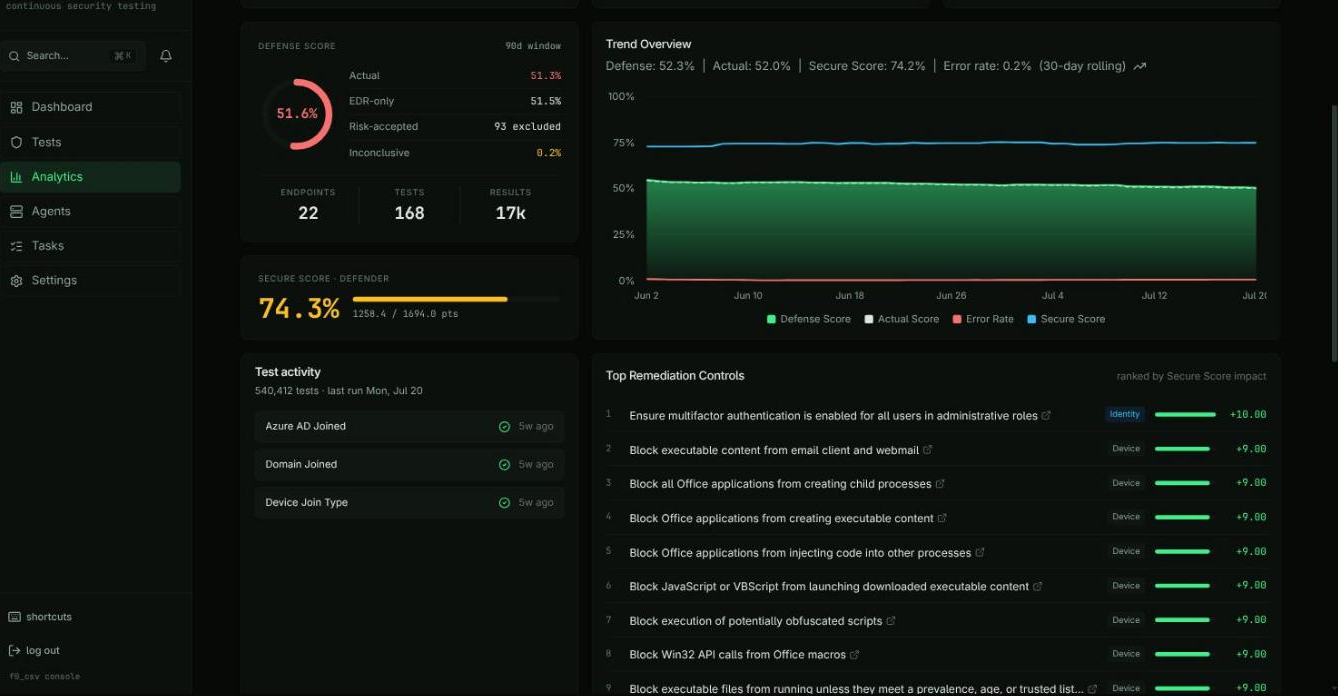
The Analytics Dashboard uses a multi-tab interface with four main areas:
Dashboard Tab
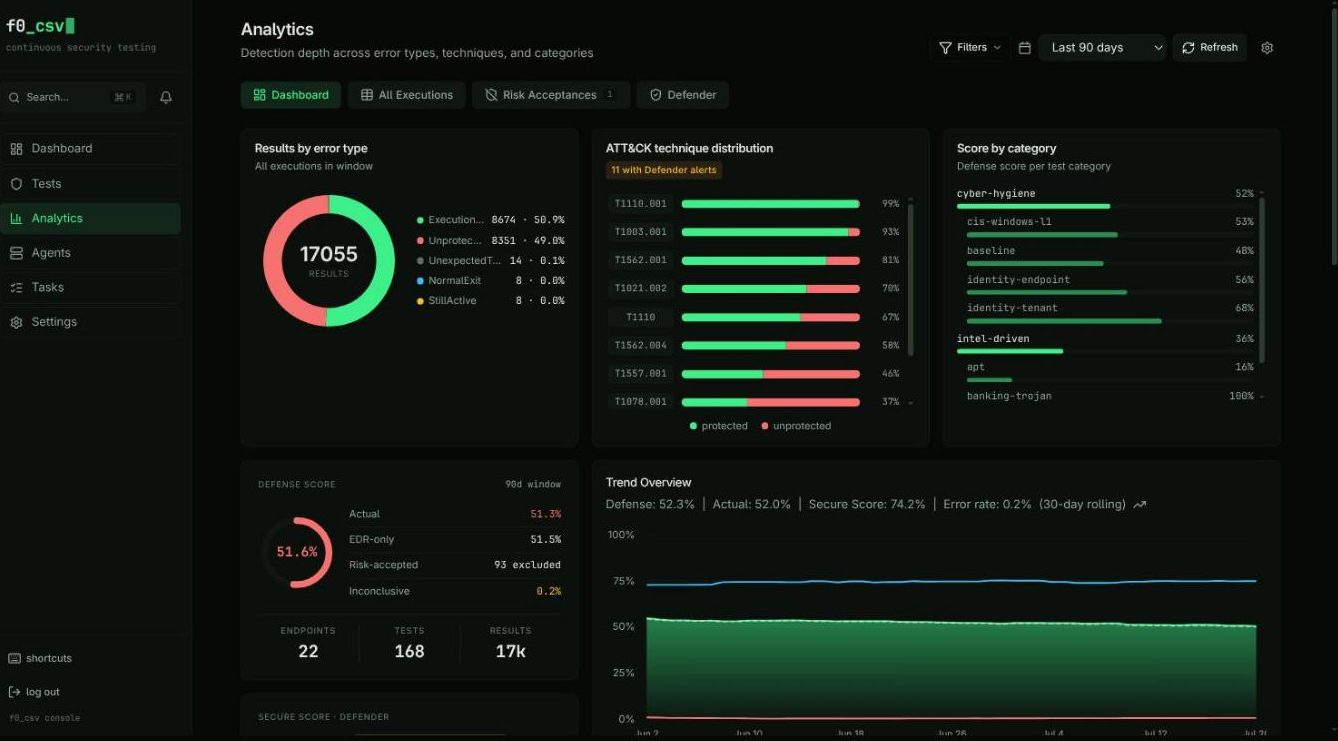
The Dashboard tab is the primary visualization hub. Since 2.1 it is laid out in analyst columns: a narrow left column carrying the numbers you quote, and a wide right column carrying the shapes you read.
Top row — three cards
- Results by error type — donut plus a legend list of
name · count · pct - ATT&CK technique distribution — one row per technique with a stacked protected/unprotected bar and a percentage; a warning chip counts techniques that also raised Defender or CrowdStrike alerts
- Score by category — bar list of defense score per category, with subcategories nested underneath
Posture row — left column
- Defense Score ledger — a ring gauge beside four reconciling lines: Actual (raw protected share), EDR-only, Risk-accepted (how many results are excluded), and Inconclusive. A footer strip carries endpoints, tests, and result counts. The ledger replaced the old hero card, which showed one big number and left the reconciliation implicit.
- Secure Score — Microsoft Defender's score and raw points, when configured
Posture row — right column
- Trend Overview — Defense Score, Actual Score, error rate, and (when configured) Secure Score on one 30-day-rolling axis. Actual Score renders as a neutral dashed reference line rather than a fourth green series.
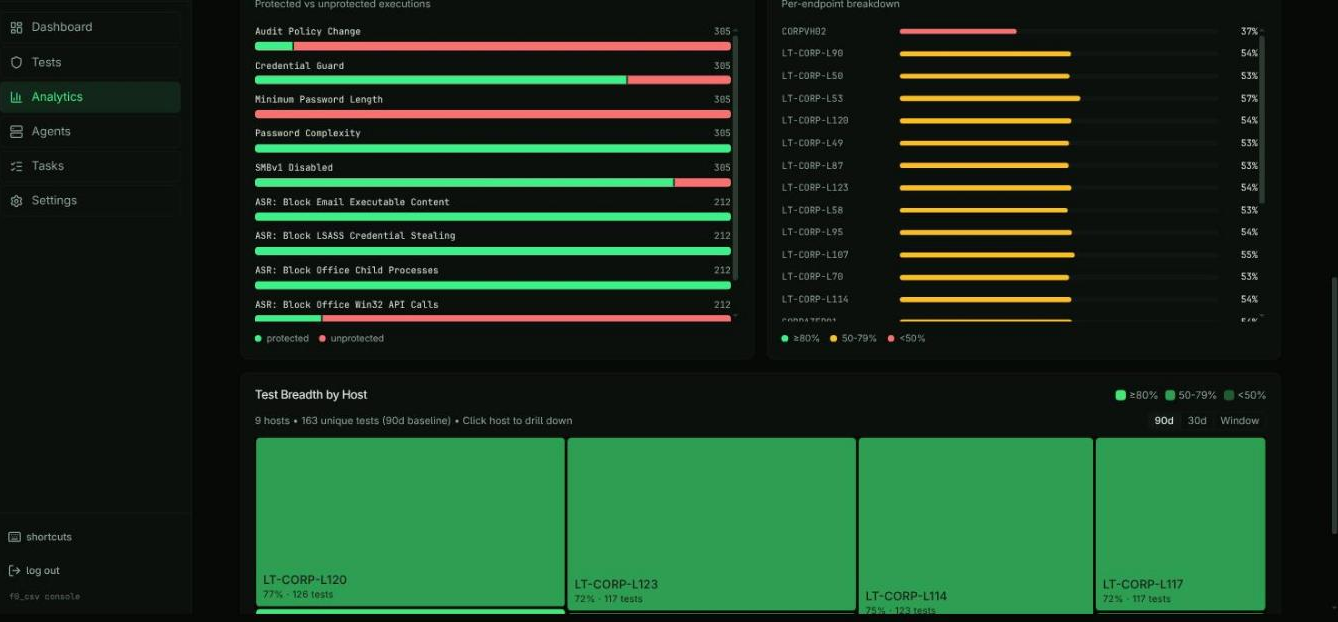
Lower rows — Test activity, Top Remediation Controls (ranked by Secure Score impact), Test Coverage and Defense Score by Host as flat bar lists, and the Test Breadth by Host treemap.
The Secure Score and Top Remediation Controls cards are Defender-only. When the integration is not configured they are omitted and the remaining cards reflow to fill the row — the layout stays balanced rather than leaving a gap.
Executions Tab
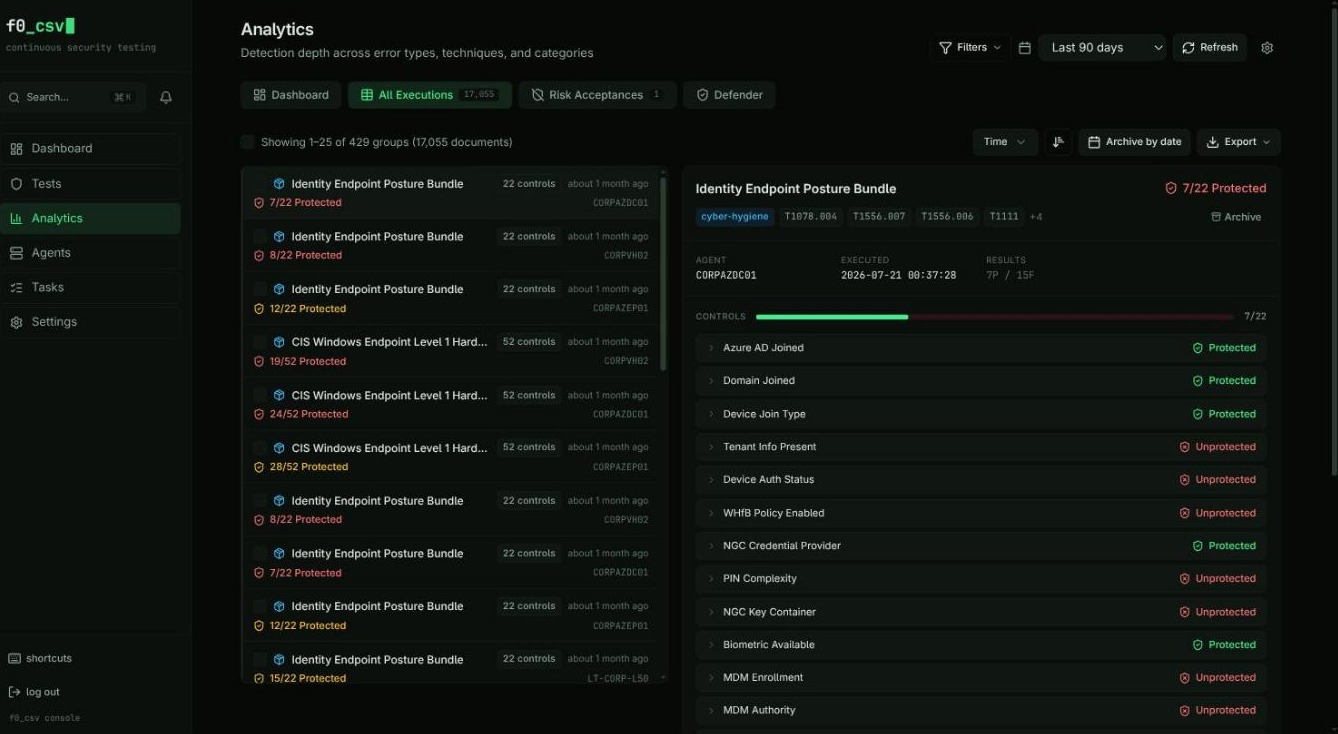
The Executions tab provides a full data table of individual test executions. Features include:
- Master-detail layout — grouped runs on the left, the selected run's
per-control results on the right;
↑/↓move the selection - Bundle grouping -- related bundle controls are grouped under collapsible parent rows showing a "X/Y Protected" summary badge
- Multi-select with bulk operations (archive, accept risk)
- CSV and JSON export with consistent timestamp formatting
- Deep-linkable — the selected run rides in
?expanded=<id>, so a dashboard "recent executions" row or a shared link opens straight to that result
Risk Acceptances Tab
The Risk Acceptances tab tracks security exceptions:
- Select failed executions from the Executions table
- Provide a justification (minimum 10 characters)
- Choose scope: test-specific, host-specific, or global
- Active acceptances appear with badges throughout the dashboard and are factored into the Defense Score
Risk acceptances can be revoked with a single click, which re-includes those results in score calculations.
Defender Tab
When Microsoft Defender is configured, a dedicated Defender tab appears with a per-execution detection rate, Secure Score, alert correlation, MITRE technique overlap, and an alert drill-down drawer. See Microsoft Defender for the full tab walkthrough.
When CrowdStrike Falcon is configured, a parallel CrowdStrike tab appears with the same shape — per-execution detection rate, ZTA posture score, alert correlation, technique overlap, and an alert drawer with Falcon console links. See CrowdStrike Falcon.
These are distinct metrics. The Defense Score measures whether a test's exit code reported it as protected; the EDR tabs' Detection Rate measures whether Microsoft Defender or CrowdStrike raised a correlated alert. The Defense Score counts cyber-hygiene controls; the Detection Rate excludes them. Auto-resolve never affects either score.
Coverage Treemap
The Coverage Treemap provides a drill-down view of test coverage per endpoint:
- Each cell represents a host, sized by the number of tests executed
- Cells are color-coded by coverage percentage:
- Green (80%+) -- Strong coverage
- Amber (50--79%) -- Partial coverage
- Red (below 50%) -- Low coverage
- Click a host cell to drill down to individual test results on that endpoint
- Three baseline comparison modes control how "100% coverage" is defined:
- 90-day baseline -- Uses the total distinct tests seen in the last 90 days
- 30-day baseline -- Uses the total distinct tests seen in the last 30 days
- Current window -- Uses only tests within the currently selected date range
Filtering
The filter bar runs across the top of every tab and supports multiple simultaneous dimensions:
| Filter | Description |
|---|---|
| Date Range | Preset ranges (24h, 7d, 30d, 90d, all time) or a custom start/end date |
| Hosts | Multi-select dropdown of endpoint hostnames |
| Tests | Multi-select dropdown of test names |
| Techniques | Multi-select dropdown of MITRE ATT&CK technique IDs |
| Categories | Multi-select dropdown of test categories |
Filters are additive -- selecting multiple values in the same dropdown narrows results. Each dropdown shows a count badge when filters are active. The filter bar is collapsible to save screen space.
Use the preset date range buttons (24h, 7d, 30d, 90d) for quick time-window changes. The trend chart automatically adjusts its time axis granularity to match the selected range.
Data Export
From the Executions tab, you can export data in two formats:
- CSV -- Spreadsheet-compatible format with consistent timestamp formatting
- JSON -- Machine-readable format suitable for integration with other tools
The export respects all currently applied filters, so you can narrow the dataset before exporting.
Real-Time Updates
The dashboard automatically reloads data when you:
- Change any filter or date range
- Switch tabs
- Modify Elasticsearch settings (index pattern changes)
- Toggle Defender or CrowdStrike integrations on or off
Only the active tab's data is fetched, so switching tabs triggers a fresh load for that tab while keeping others cached.